Modern Spreadsheets in Maple
Maple is a numeric computing platform. It offers a robust C-based extension system.
SheetJS is a JavaScript library for reading and writing data from spreadsheets.
This demo uses SheetJS to pull data from a spreadsheet for further analysis within Maple. We'll create a Maple native extension that loads the Duktape JavaScript engine and uses the SheetJS library to read data from spreadsheets and converts to a Maple-friendly format.
This demo was tested by SheetJS users in the following deployments:
| Architecture | Version | Date |
|---|---|---|
darwin-x64 | 2025.1 | 2026-06-13 |
win11-x64 | 2025.1 | 2026-06-13 |
Maple has limited support for processing spreadsheets through the ExcelTools
package1. At the time of writing, it lacked support for XLSB, NUMBERS, and
other common spreadsheet formats.
SheetJS libraries help fill the gap by normalizing spreadsheets to a form that Maple can understand.
Integration Details
The current recommendation involves a native plugin that reads arbitrary files and generates clean XLSX files that Maple can import.
The extension function ultimately pairs the SheetJS read2 and write3
methods to read data from the old file and write a new file:
var workbook = XLSX.read(original_file_data, { type: "buffer" });
var new_file_data = XLSX.write(workbook, { type: "array", bookType: "xlsx" });
The extension function will receive a file name and perform the following steps:
C Extensions
Maple extensions are shared libraries or DLLs that use special Maple methods for parsing arguments and returning values. They are typically written in the C programming language.
To simplify the flow, the new function will take one argument (the original file name) and return one value (the new file name).
The official documentation has a comprehensive list4 of methods. For this demo, the following methods are used:
-
MapleNumArgsandIsMapleStringare used in argument validation. The demo function will raise a Maple exception if no file name is specified. -
MapleRaiseErrorandMapleRaiseError2programmatically raise errors. -
MapleToStringandToMapleStringconvert between Maple and C strings.
Duktape JS Engine
This demo uses the Duktape JavaScript engine. The SheetJS + Duktape demo covers engine integration details in more detail.
The SheetJS Standalone scripts can be loaded in Duktape by reading the source from the filesystem.
Complete Demo
This demo was tested in Windows x64. The path names and build commands will differ in other platforms and operating systems.
The sheetjs-maple.c extension exports the
SheetToXLSX Maple method. It takes a file name argument, parses the specified
file, exports data to sheetjsw.xlsx and returns the string "sheetjsw.xlsx".
This can be chained with Import from ExcelTools:
with(ExcelTools);
Import(SheetToXLSX("pres.numbers"))
- MacOS
- Windows
- Open a new Terminal window and create the
/tmp/sheetjs-maplefolder:
cd /tmp
mkdir sheetjs-maple
cd sheetjs-maple
- Copy the headers and
libfiles from the Maple folder to the project folder. The headers will be placed in theextern/include/folder in the Maple folder. Thelibfiles are placed in a platform-specificbinfolder.
- MacOS
- Windows
In macOS, the "Maple folder" is located in /Library/Frameworks:
cp /Library/Frameworks/Maple.framework/Versions/2025/extern/include/*.h .
cp /Library/Frameworks/Maple.framework/Versions/2025/bin.APPLE_UNIVERSAL_OSX/*.so .
cp /Library/Frameworks/Maple.framework/Versions/2025/bin.APPLE_UNIVERSAL_OSX/*.dylib .
- Observe that macOS does not need a "Linux Subsystem" and move to Step 4.
copy "C:\Program Files\Maple 2025\extern\include\"*.h .
copy "C:\Program Files\Maple 2025\bin.x86_64_WINDOWS"\*.lib .
- Run
bashto enter WSL
- Install Duktape:
curl -LO https://duktape.org/duktape-2.7.0.tar.xz
tar -xJf duktape-2.7.0.tar.xz
mv duktape-2.7.0/src/*.{c,h} .
- Download SheetJS scripts and the test file.
curl -LO https://cdn.sheetjs.com/xlsx-0.20.3/package/dist/shim.min.js
curl -LO https://cdn.sheetjs.com/xlsx-0.20.3/package/dist/xlsx.full.min.js
curl -LO https://docs.sheetjs.com/pres.numbers
- Download the extension C code
curl -LO https://docs.sheetjs.com/maple/sheetjs-maple.c
- MacOS
- Windows
-
Observe that macOS does not need a "Linux Subsystem" and move to Step 8.
-
Build the extension library:
gcc -shared -fPIC duktape.c sheetjs-maple.c -lm -std=c99 -Wall -o libsheetjs-maple.so -L. -lmaplec
-
Exit WSL by running
exit. The window will return to the command prompt. -
Build the extension DLL:
cl -Gz sheetjs-maple.c duktape.c /EHsc -link -dll -out:sheetjs-maple.dll maplec.lib
-
Close and re-open Maple, then create a new Maple Worksheet or Document
-
Run the following command in Maple to change the working directory:
- MacOS
- Windows
currentdir("/tmp/sheetjs-maple");
currentdir("c:\\sheetjs-maple");
- Load the
SheetToXLSXmethod from the extension:
with(ExternalCalling):
dll:=ExternalLibraryName("sheetjs-maple"):
SheetToXLSX:=DefineExternal("SheetToXLSX",dll):
- Read the
pres.numberstest file:
with(ExcelTools);
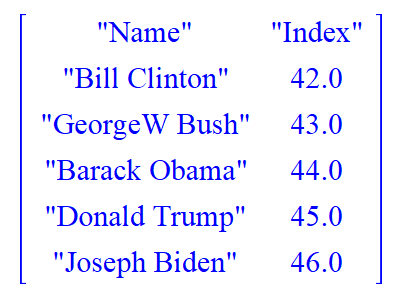
Import(SheetToXLSX("pres.numbers"))
The result will show the data from pres.numbers
Footnotes
-
See "ExcelTools" in the Maple documentation. ↩
-
See "C
OpenMapleandExternalCallingApplication Program Interface (API)" in the Maple documentation. ↩ -
In a PowerShell terminal window, run
wsl --install Ubuntu↩ -
See the Visual Studio website for download links. In the Visual Studio Installer, install the "Desktop development with C++" workflow. ↩